Put your knowledge to work.

Ask questions, build apps, and work with your team’s files.

Fieldwork Goods plans its next campaign.

Connect the tools your team already uses.

Google Workspace
Slack
Notion
Linear
GitHub
Dropbox
SinoraBring it together.
Campaign plannerIllustrative preview

A clearer next move.

Sales. Stock. Team context.

Plan the promotion with the full picture.
Connection setup

Connect supported tools and choose their permissions; connecting an account does not automatically import everything or share private data with your team. Ask about a connection.

Ask Sinora a question in Slack.

#campaign-planning
@Sinora, can we promote the canvas tote next week without running out?
Ad performance.csvInventory forecast.xlsxSupplier confirmation.pdf
Sinora’s analysis

Stock runs out before the delivery.

  • 180 totes at 20 orders a day
  • 9 days of stock left
  • 14 days until the next delivery
Slack setup

Conversations require an administrator-enabled Slack app. A personal Slack connection separately allows actions on your behalf. Channel access and permissions still apply.

Review campaign performance every Monday.

Weekly campaign review
08:00Every Monday
Toronto time

Compare the latest sales, ad spend, and stock reports.

MTWTFSS
Monday’s report

Review the spend and stock gap.

  • Ad return 2.1× on $6,000 spent
  • Stock gap Five days before replenishment
  • Next step Confirm supply before scaling ads
Task controls & permissions

Edit or pause a task, and review its run history in Scheduled. Tasks use the files, tools, and permissions available at run time.

Your everyday tools.

Keep the work and its context together.

Shared Projects

Share files and context with the right teammates.

  • Conversations, files, apps, and schedules
  • Project-level team access

AI Conversations

Research a question or draft a document with your company context.

  • Continue conversations inside a project
  • Choose from your available models

Workspace Apps

Build a tracker or dashboard around the way your team works.

  • Apps stay connected to their project
  • Keep working with app-specific chat

Drive and Files

Keep source documents and finished work within reach.

  • Project files and workspace-wide Drive
  • Preview supported files or download

Company Memory

Use saved facts and decisions in future conversations without sharing every private conversation across the company.

  • Memory follows conversation scope
  • Memory belongs to your workspace

Scheduled Work

Schedule research and summaries with your connected tools.

  • Schedules organized by project
  • Run history and pause controls

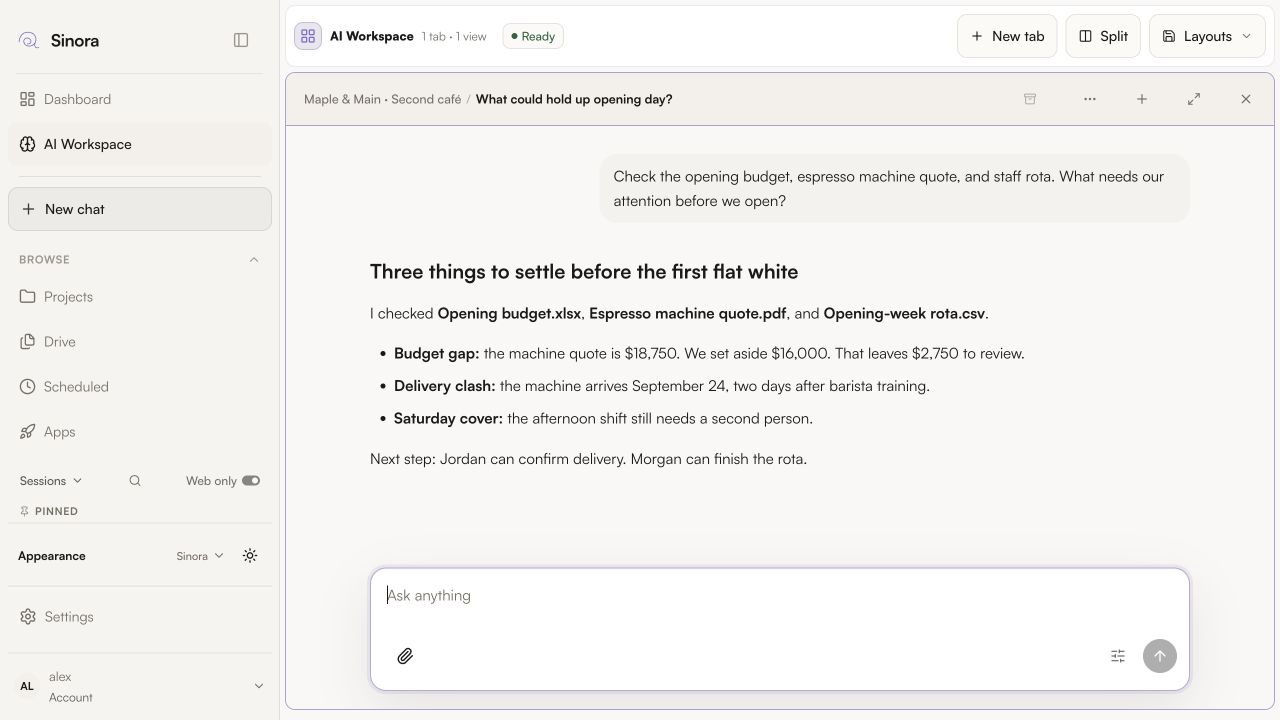
Spot what’s missing.

Compare budgets, dates, and staffing before you commit.
  • Research questions with connected tools
  • Create drafts from project context
  • Keep the output with the project
Actual Sinora AI workspace spotting gaps across a café budget spreadsheet, PDF quote, and staffing CSV.
Open the workspace image to explore a café-opening scenario.

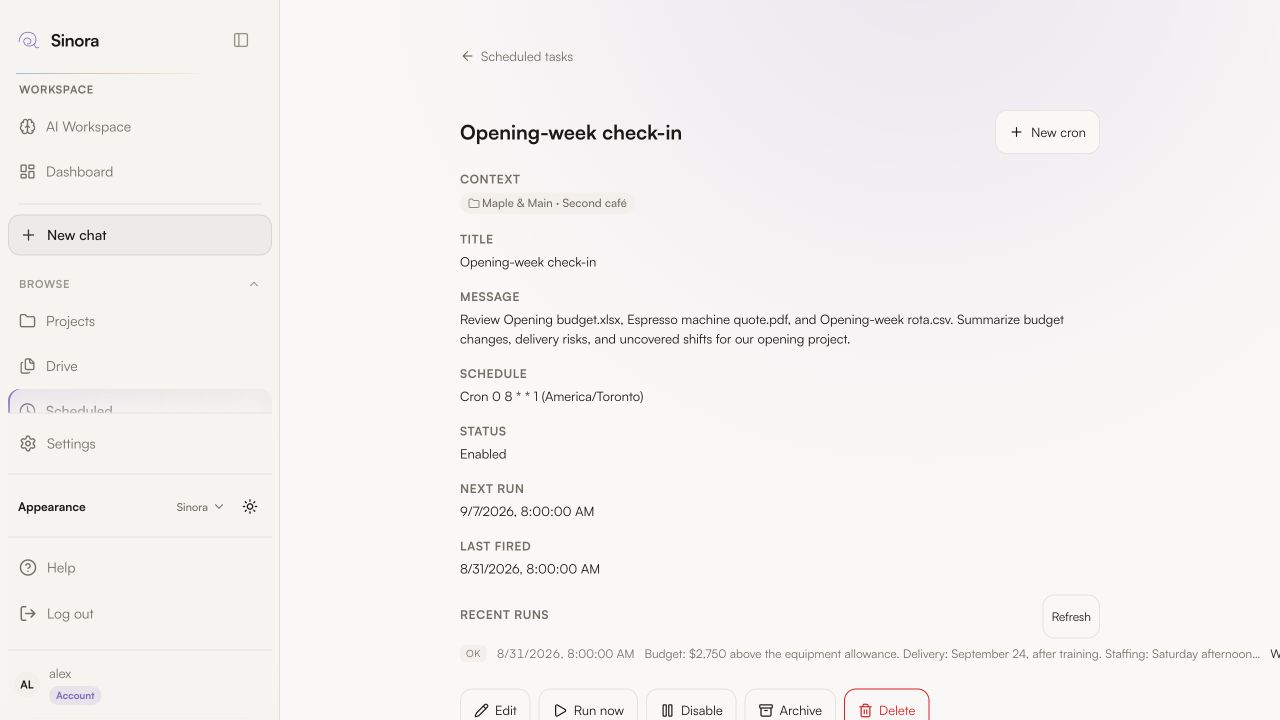
Reports, on schedule.

Get a project summary at the time you choose.
  • Choose the task, timing, and project context
  • Check recent runs and open the result
  • Pause, edit, or archive when plans change
Actual Sinora Scheduled task with a weekly café opening brief, America/Toronto timing, next run, recent result, and task controls.
Open the workspace image to explore a café-opening scenario.

Start your first project.

Add files. Invite your team.

See plans